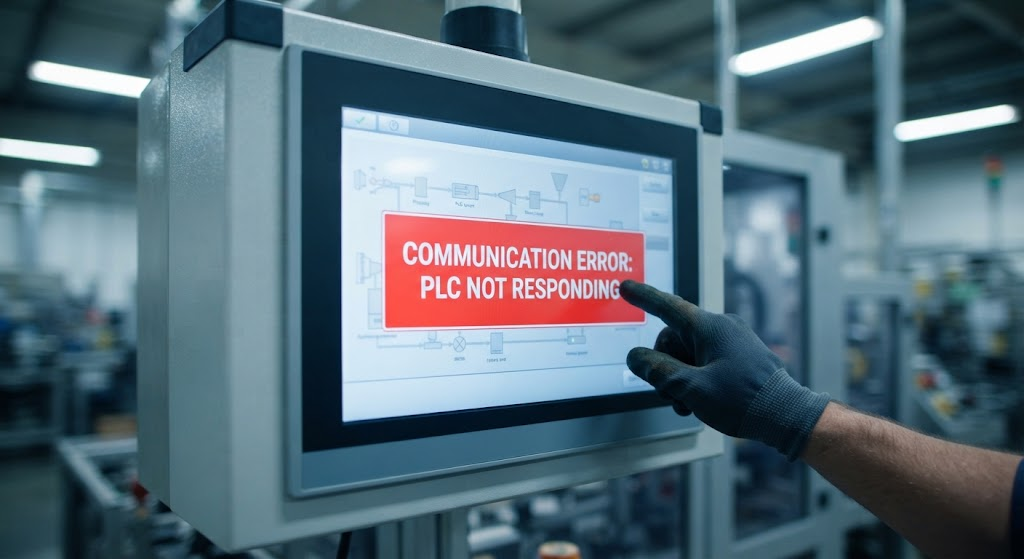
When Studio 5000 will not go online with a controller, isolate the path one layer at a time. The failure may be the engineering laptop, network adapter, driver, controller path, firmware compatibility, or project state. Do not assume the PLC is dead because the software cannot browse to it.
Before changing wiring or downloading anything, record the exact message, controller model, IP address, chassis slot, Studio 5000 version, firmware revision, and whether the machine is currently in production.
1. Check the laptop and network path
- Confirm the laptop adapter is enabled and connected to the intended network.
- Check the laptop IP address, subnet mask, and gateway against the controller network plan.
- Verify basic reachability using the site-approved diagnostic tools.
- Disconnect unused VPNs, Wi-Fi paths, and secondary adapters that may confuse route selection.
A successful ping does not prove that EtherNet/IP services or the Studio 5000 path are correct, but a failed basic network check is a reason to stop before debugging the application.
2. Verify the driver and browse path
FactoryTalk Linx or the installed communication software must use the adapter and driver intended for the connection. USB, Ethernet, and virtual adapters can present different browse paths. Refresh the browse tree and verify the controller identity rather than selecting a device only because its name looks familiar.
3. Check the controller path
For direct Ethernet, verify the IP address. For a ControlLogix chassis, verify the backplane path and processor slot. A replacement processor may be in a different slot from the original. Remote paths through bridges, managed switches, or gateways must be checked one segment at a time.
4. Check firewall and software compatibility
Endpoint firewalls and security software can block industrial communication. Follow the plant’s IT process rather than disabling protection casually. Confirm Studio 5000 and controller firmware compatibility before attempting an upload, download, or firmware change.
5. Confirm controller state and project match
A keyswitch, locked project, or protected application can restrict the operation you are attempting. If the controller is online but the ACD file does not match, preserve the running program before accepting any download prompt. Uploading, downloading, and firmware work should be performed by qualified personnel with a documented rollback plan.
If the processor is locked, password-protected, or the project does not match, TechControl can assist with industrial troubleshooting. Bring the last known ACD and any available network documentation.
Ready to bring your project to life?
Contact Us